
TOTP is activated by Secapp for each environment. After this, TOTP can be activated for each user by the user. The user must complete the activation themselves; an administrator cannot do this on the user’s behalf.
TOTP activation by user #
Below are instructions for activating TOTP on mobile. Activation can also be completed in a browser, where it is done from the user settings using the same steps as on mobile.
- Open Secapp on a mobile device
- Select the three dots in the top corner and “Settings”

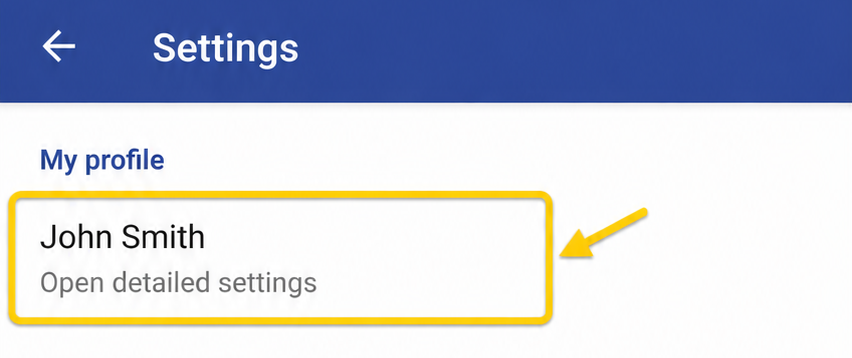
- Open the detailed settings by tapping the name (on an iOS device: Me > Full settings)
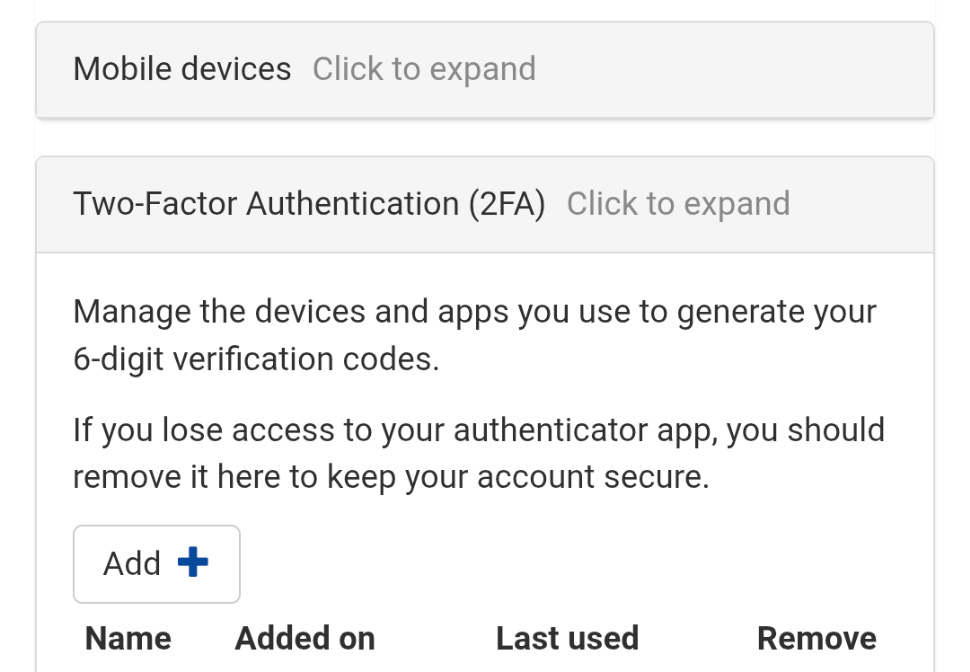
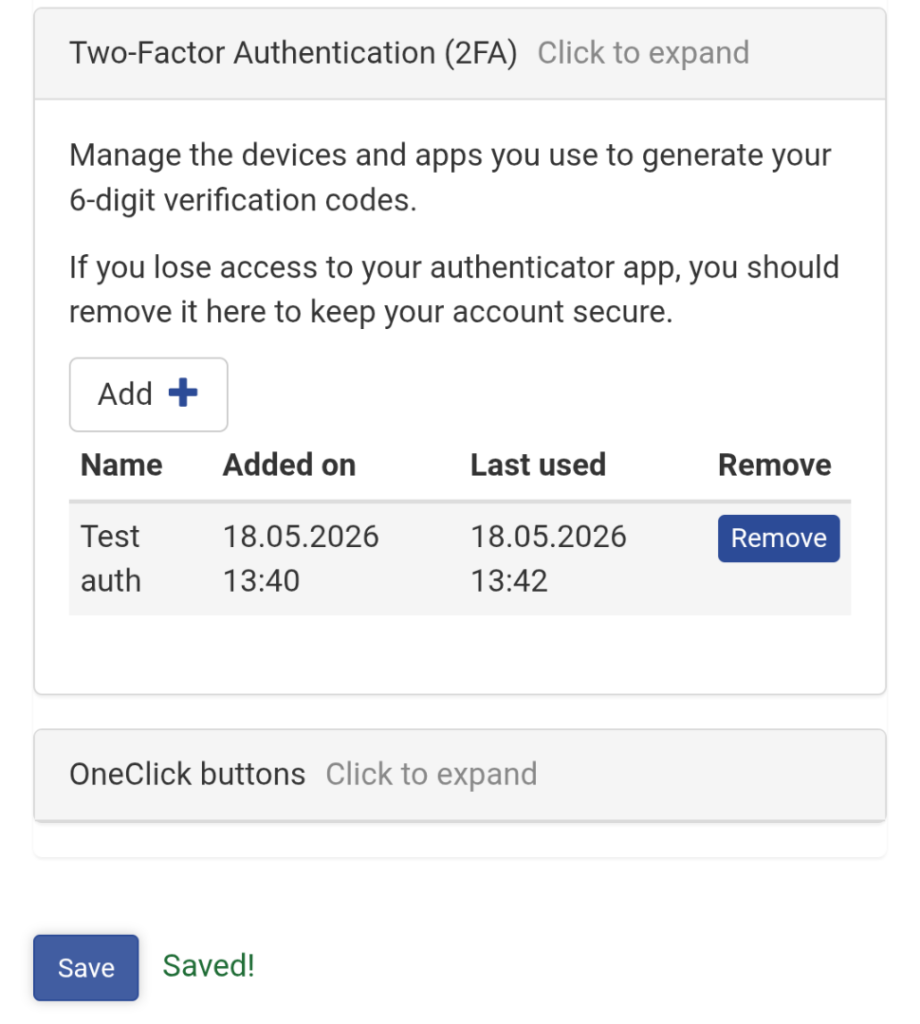
- Scroll down until you find Two-Factor Authentication (2FA) > click the heading to expand > Add
- Scan the QR code, or if you want to activate 2FA on the same device, select “You can enter the code manually instead of scanning” in the authenticator app you are using. Examples include Microsoft Authenticator and Google Authenticator. A user can add multiple authentication codes, so they should be named in a way that clearly links the code to the correct login. Authenticator apps do not open any pop-up window with Secapp; the user must retrieve the code from the app. The code must also be removed from the authenticator app if it is removed from Secapp.
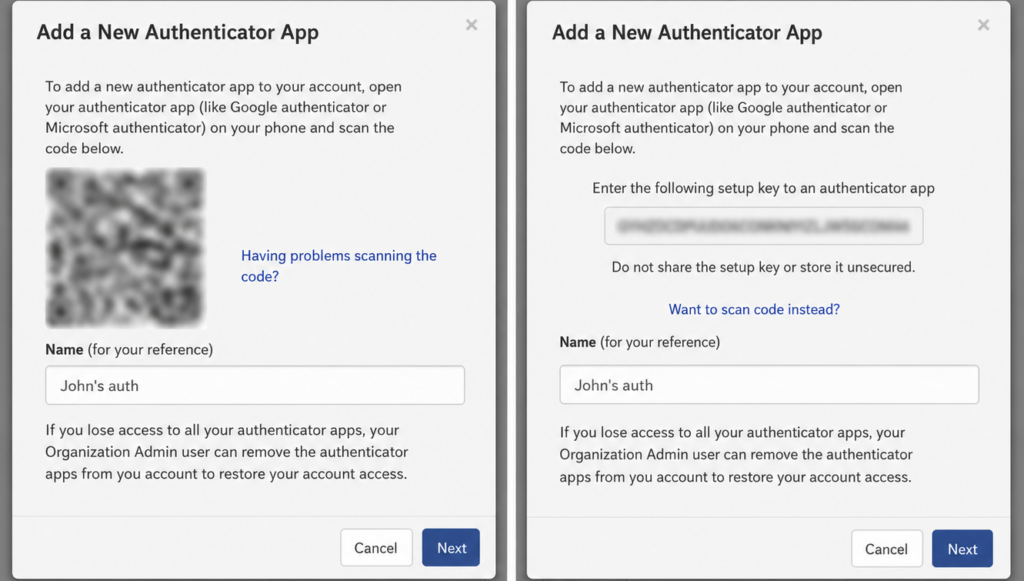
- Name the authenticator
- Confirm using the code in the authenticator app.
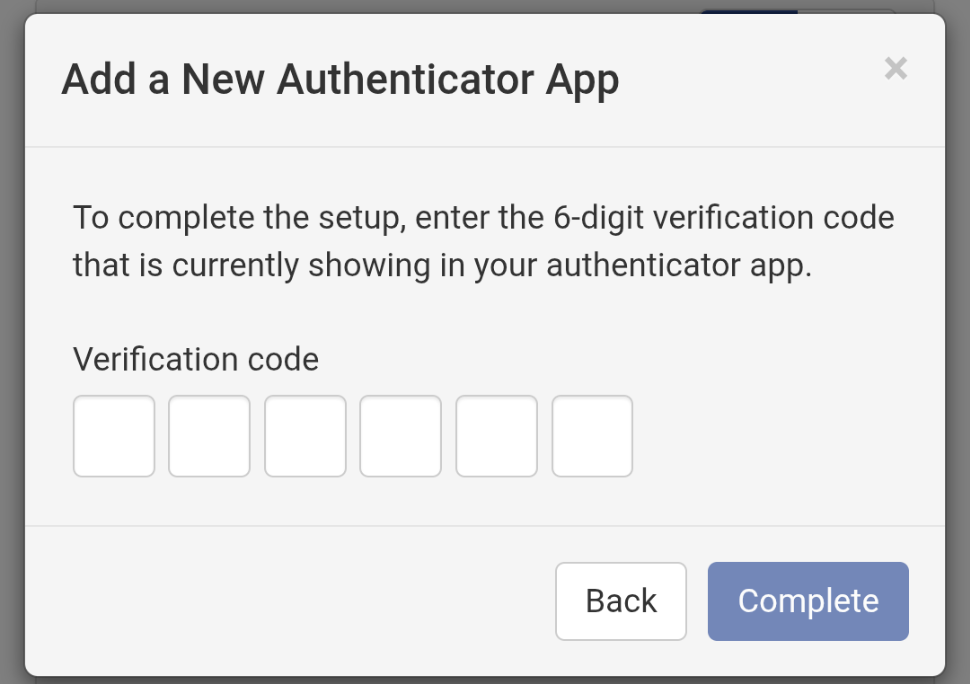
- Save the settings. If the settings are not saved, the setup will not be saved.
Signing in as a user with TOTP enabled #
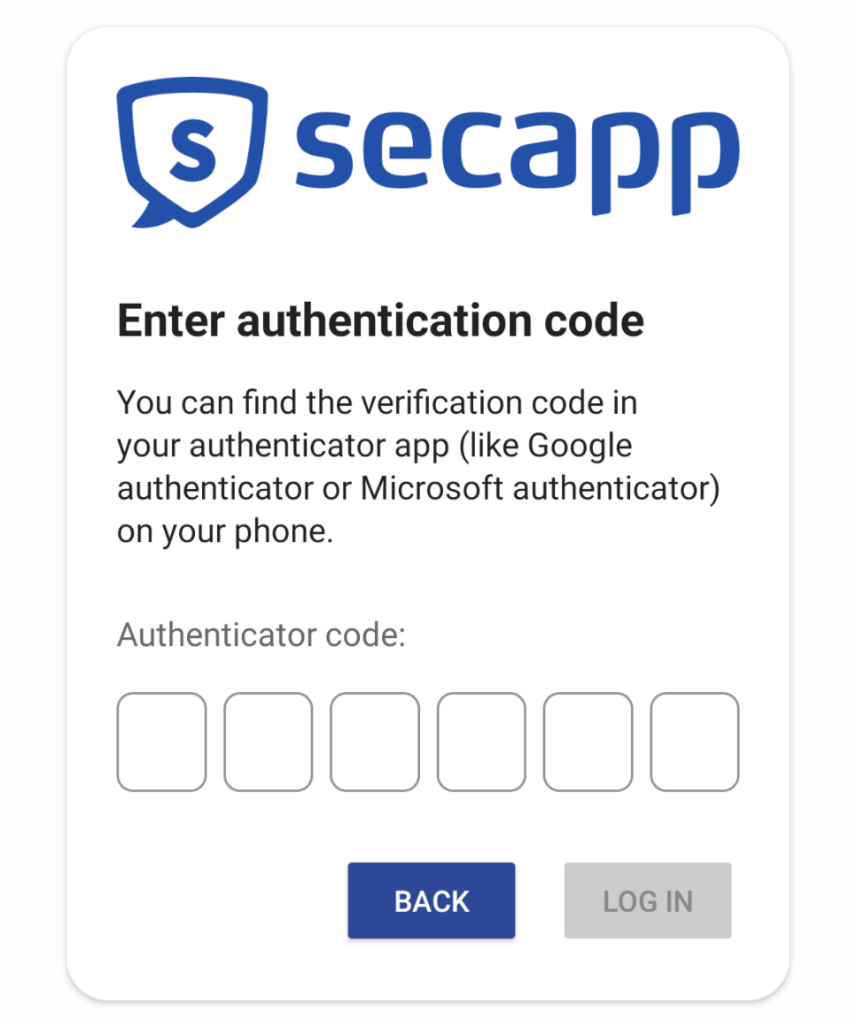
Enter your username and password, and the verification code view will open.
Open the authenticator app and type or copy the code into the field that opens. To paste, press and hold the first box in the Enter your verification code window.
Browser login #
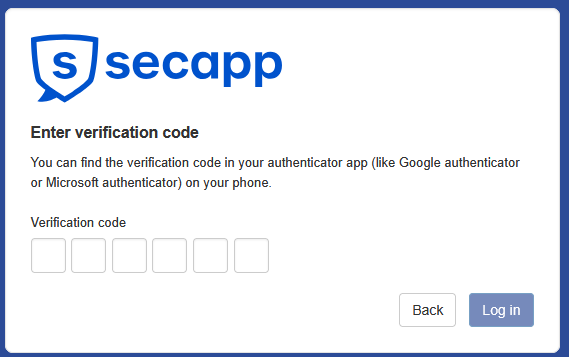
Browser login displays the following verification code window.
TOTP management #
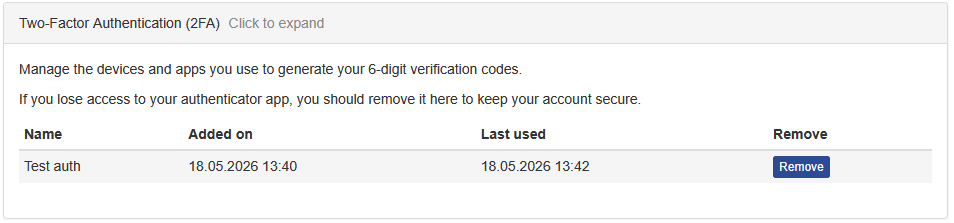
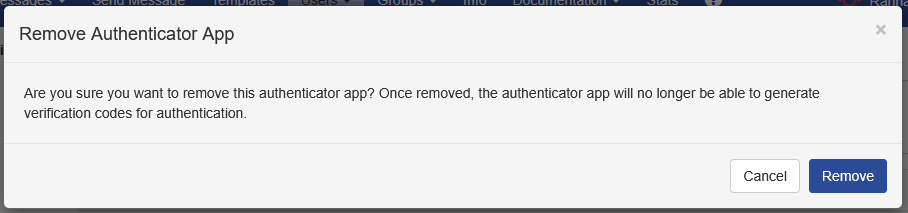
An administrator or the user can, if necessary, remove the authentication keys from the user’s settings. When this is done, the user must set up authentication again the next time they log in.
Win client #
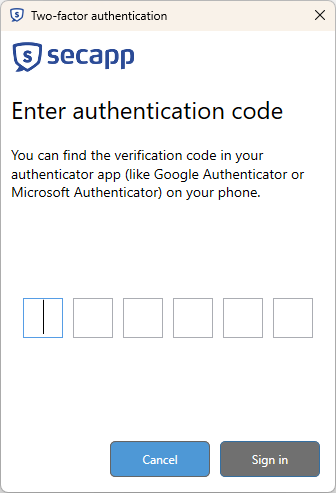
NOTE! TOTP cannot be activated in the Win client. It must first be activated either on a mobile device or in a browser for the relevant account. WinClient only asks for the code during login. After login, the verification code window opens:
SSO login #
If SSO login is in use, TOTP is not used when signing in with SSO.