
Secapp OneClick buttons now include new functionality that brings additional flexibility to sending messages and alerts. With this update, the content of a message triggered from a OneClick button can, when needed, be edited before sending within the limits allowed by the message template settings.
OneClick buttons have been part of Secapp for a long time, especially for fast and easy message and alert sending. The new functionality enables more situation-specific communication without making message template management more complex.
Editable message within the rules of the message template #
A OneClick button is always linked to a message template, so the message triggered by the button is based on predefined content. Now, the message template can define whether the user is offered the option to edit selected parts of the message before sending.
The admin user who creates the message template defines which fields are editable. Only fields that are not locked in the template settings can be changed by the user. Locked fields remain unchanged.
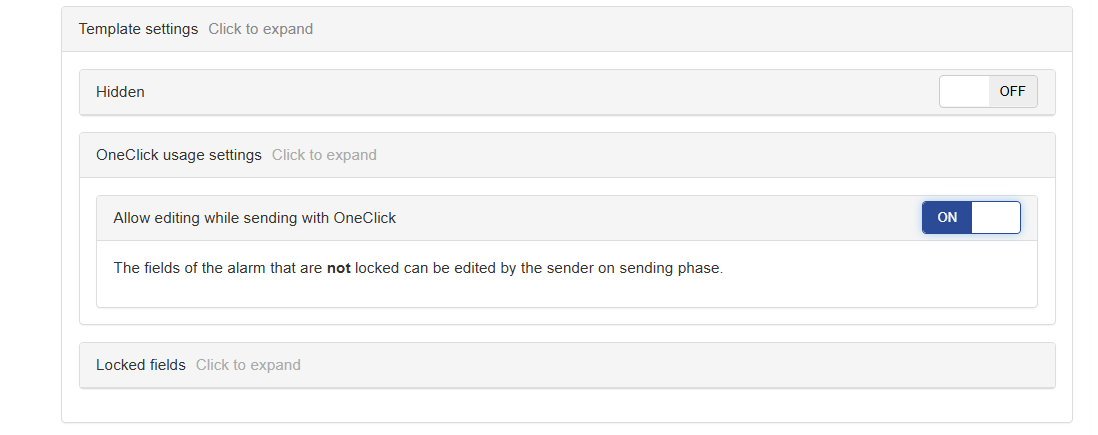
These settings can be found in the message templates under Template settings, where a new settings group has been added for allowing editing while using OneClick buttons.
Editing in the mobile and Windows apps #
When a OneClick button is pressed, the familiar view opens where the user can still cancel sending the message within 5 seconds (Figure 1, below). If message editing is allowed, an Edit and send button appears next to Cancel. If the message needs to be edited, the user must press this button within 5 seconds, after which they can edit the message content within the limits allowed by the message template.
After editing, the message is sent like any standard message by clicking Send OneClick at the bottom of the editing view (Figure 2, below).
In the mobile apps, the new functionality will be enabled with the next update.
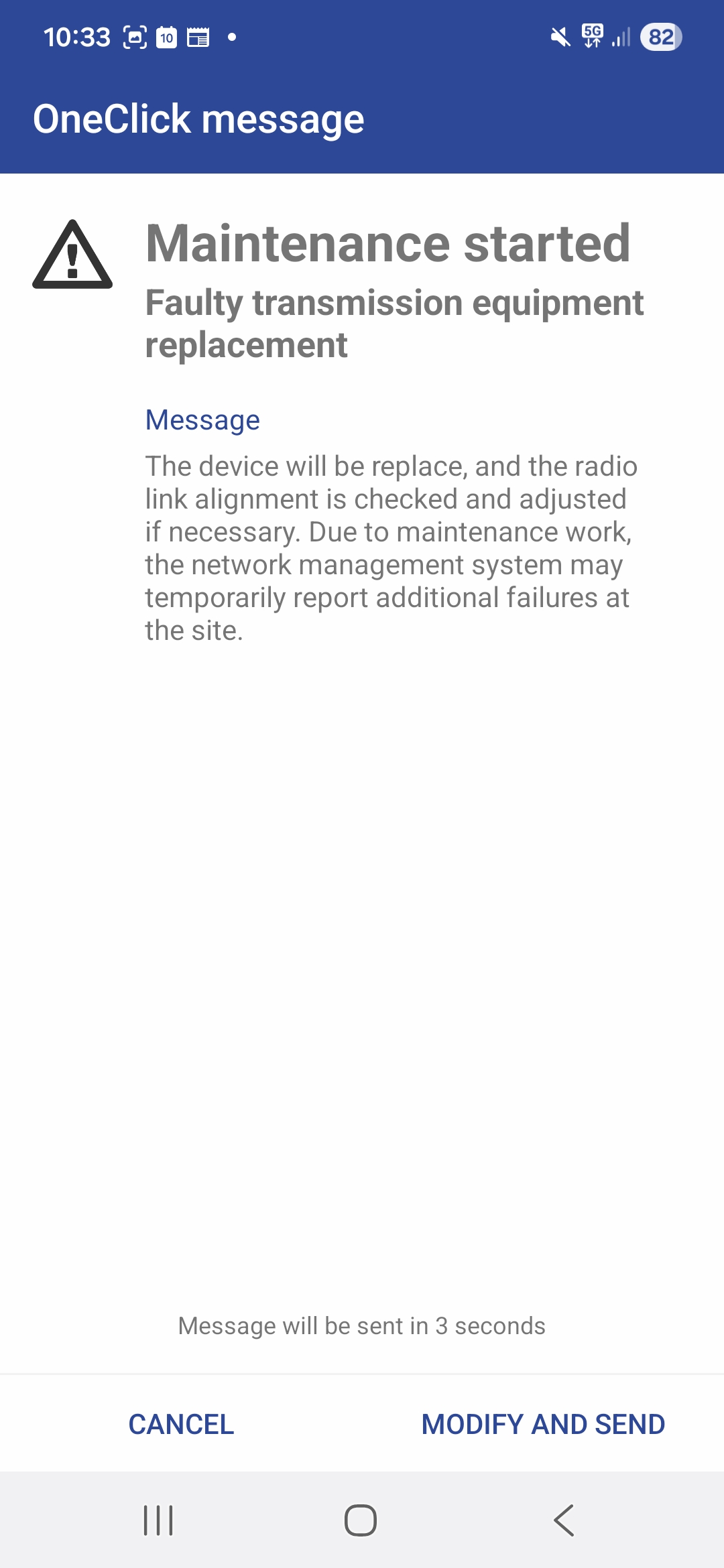 Figure 1 | 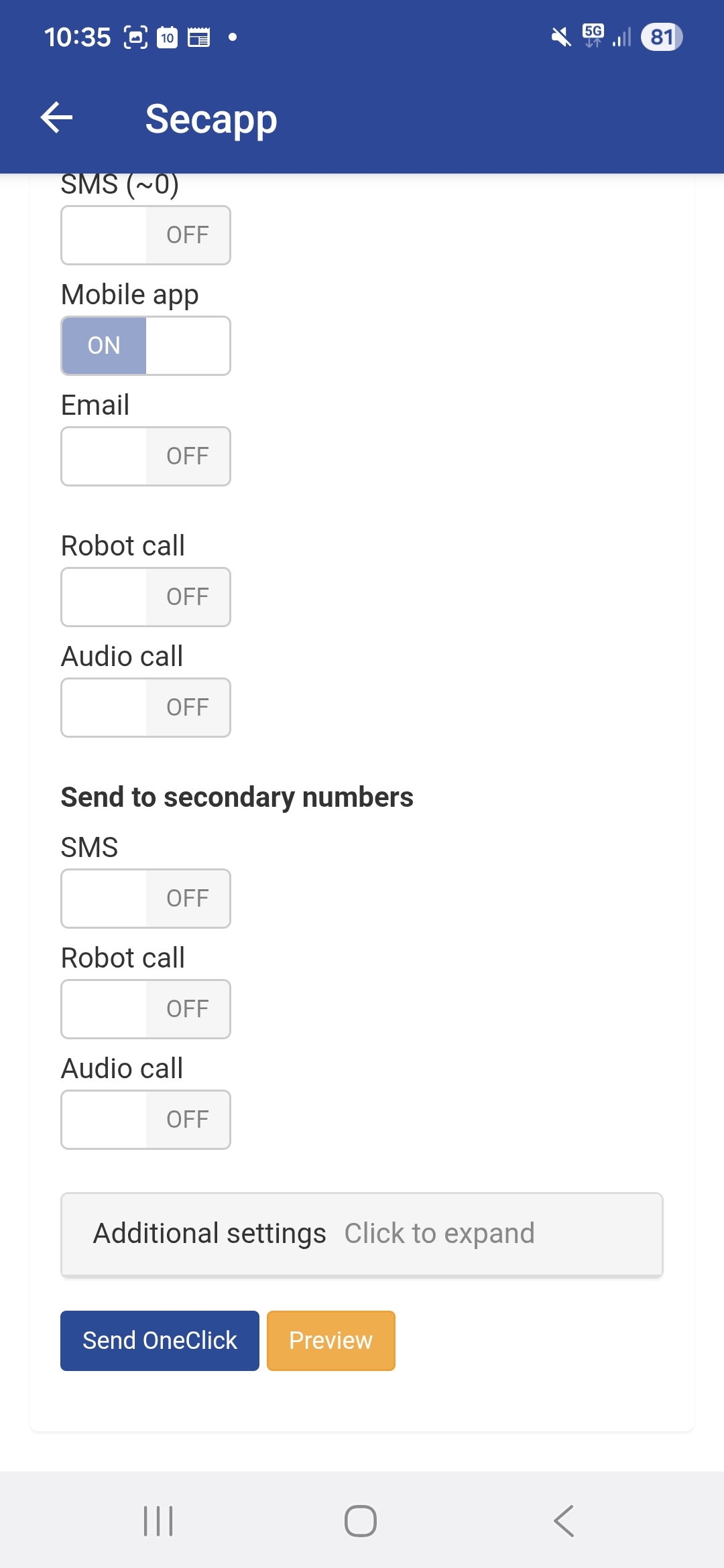 Figure 2 |
The Windows app will also include the corresponding functionality once the application has been updated to version 1.0.30. (This update is available now and after 23 February 2026 the apps will notify end users that an update version is available. You can find the update instructions at the end of this message.)
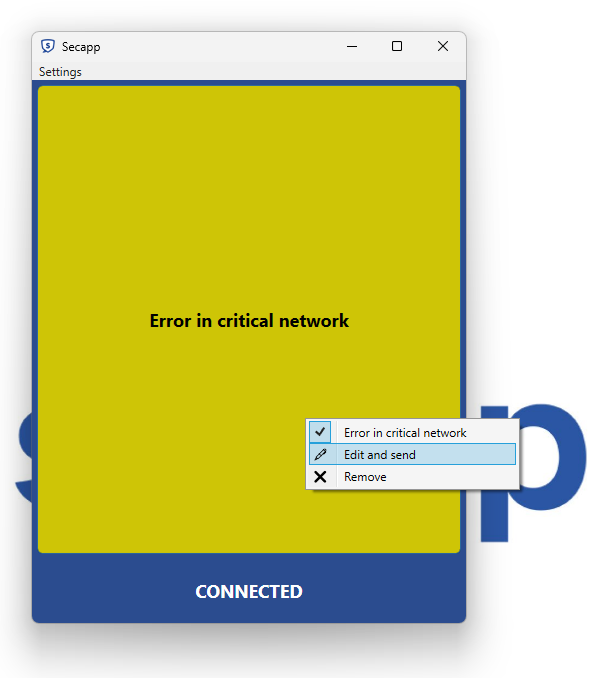
In the Windows app, editing starts by right-clicking the OneClick button and selecting Edit and send (figure below). If this option is not visible, editing is not allowed in the message template linked to that button.
Not for urgent situations #
The message editing option is intended for non-urgent messages where the content should be refined before sending. The feature should not be used in situations where an alert, including location information, must be sent immediately without any user interaction, such as threat situations or emergencies where a OneClick button or an external physical button is used to request help.
Example use case #
A typical use case is refining the message target information. A message template can allow editing of the Target field, enabling the user to adjust the message target when using a OneClick button so it matches, for example, the actual location of a maintenance task. Recipients then receive clear information about what the message and any related report concern.
Windows app update instructions #
Because application management is centralized in many organizations, please first check with your IT support who is responsible for updating the Secapp desktop application.
- Download Secapp: https://www.secapp.fi/windows/
- Close the old version (also check hidden Windows icons and close it there if needed)
- Install the downloaded program
- Open Secapp and verify the version